OpenWeights Terminal
OpenWeights Terminal connects open models with the machines that run them. Compare performance on real hardware, use a model on the network, or put your own machine to work and earn a share of each completed job.
We believe people should have a choice about where their AI runs. Open weights make that possible. Our job is to make the hardware, software, and economics easier to understand, so you can decide what works for you.
Using a great model from OpenAI or another frontier lab can feel like magic. Suddenly you can build something you couldn’t build before, understand an idea that never quite clicked, or follow a thought further than you could on your own. We want everyone in the world to have that chance. The freedom to use and build with AI should not depend on permission from a handful of labs. That means supporting open models and resisting regulatory capture that protects established companies at everyone else’s expense.
Your model.
Understand it. Adapt it. Build on it.
Your machine.
Choose where it runs and how you use it.

Everyone’s possibility.
More people with the freedom to create.
Find out what runs well on your hardware
The same model can perform very differently on a laptop, a desktop GPU, or a dedicated workstation. The catalog brings those results together, pairing each model with the hardware, runtime, and quantization used. Quantization is the precision of the model’s weights; it affects memory use and can change speed and output quality.
Throughput is shown in tokens per second, with source links and a status that distinguishes reported results from reproduced ones. You can also compare hardware prices, power use, and estimated payback. These are reference figures to help you plan; actual performance and earnings depend on your setup and demand.

Know what you’re choosing
A model’s type tells you what it does. Its content label tells you what we know about its filtering. These are separate choices: an image model, a voice model, or a text model can each have different restrictions. Open weights do not automatically mean uncensored.
Text
Prompts into words and code.
Images
Prompts into pictures.
Voice
Text into spoken words.
Speech-to-text
Spoken words into text.
Audio
Sound effects and music.
Uncensored
The publisher describes reduced refusals or removed content filters.
Censored
Content restrictions or refusal behavior are documented for this build.
Unknown
We do not have enough evidence to label this build’s filtering.
These labels describe the cited build, not a guarantee of every output. A host can add its own filters. They say nothing about privacy, licensing, or whether a host is online.
The host picker includes Qwen Image’s community uncensored release alongside official image, voice, transcription, and audio models. Image and audio entries are for discovery and local use; the pool currently supports text inference only.
Use a model
Choose “Experience the Magic” on the homepage, then “Chat now”, or open the chat directly. It offers a limited guest trial with no account or API key to set up. Pick a starter question, edit it, and send. Available builds labeled uncensored in our catalog are suggested first; those labels do not verify the host’s weights. Follow-ups include a short recent history. Closing the window keeps your conversation while you stay on the page. New chat clears the conversation in this tab and lets you choose another model.
The guest trial depends on available hosts and the demo budget. Network messages and recent context pass through OW Terminal and the host. Answers appear when the host finishes; live token streaming is not supported yet.
For an app or agent, choose “API & agents” for the endpoint and a copyable first request. Follow “Set up my API key” to create and fund your key. The API currently uses only the last message; your app manages context and tools. Streaming and tool calls are not supported yet. To continue with your own credits, choose a model with an available host and pay for the tokens used. Hosts set their own rates, and the pool quotes the lowest eligible offer for your chosen model. Check the pricing page for current availability and endpoint-test status.
Put your machine to work
To host, run a model with a supported local engine, then connect it through the browser or the ow host client. You choose which models to share, set a rate for each one, and decide when your machine is available. Hosts keep 80% of each completed job; the remaining 20% goes to OW Terminal.

One computer. More than one model.
If your local app serves Qwen, DeepSeek, and GLM, you can share all three through one worker. Each model gets its own offer: an exact model ID, a price, a pool test, and an earnings balance. The computer stays grouped together in your account.
Qwen
Own rate, test & earnings
DeepSeek
Own rate, test & earnings
GLM
Own rate, test & earnings
All three share the worker’s capacity. Three offers do not mean three GPUs.
- Find and choose. In the host setup, find the models your app lists and select the ones you want to share. You can choose up to 24. A JSON model list helps with selection; it does not download or install weights.
- Test and price. Test each selected model, then review its rate. Suggested rates are a starting point; you choose the price. The same rate applies to input and output tokens.
- Start sharing. Keep the app and host tab open. Each offer has its own pool status. Use “Add or remove models” and “Find models again” when your app’s model list changes.
Stopping a model keeps its saved connection and earnings. The other selected models can keep working. After contact stops, its live listing expires within three minutes.
Using the CLI? It checks the model list every minute. Set OW_MODELS to choose exact IDs. Leaving it unset shares all listed models, including new ones added later, up to the selection limit. Existing registrations keep their prices.
Know when each model is connected
Finding a model’s name is only the first step. Check the status of each offer to see what has actually worked.
- Found in your app
- The app lists this model ID. Its name and icon help you recognize it; they do not prove which weights are running or whether it can answer a request.
- Local test passed
- The browser sent a short prompt to that exact ID and received a text answer. This checks the connection to your app.
- Registered with the pool
- The pool has created the model’s offer. Worker contact keeps it online. Registration and an online badge alone do not mean the pool test has passed.
- Ready for work
- The worker is active and a recent pool test has passed for this model. The test travels from the pool to your worker and back with a checked response. An idle, ready worker can still be waiting for demand; earnings come from completed paid jobs, not from tests.
A pool test checks that a request can make the round trip. It does not attest model weights, prove an uncensored label, or provide a trusted execution environment. Check freshness lasts 24 hours; the worker normally requests a new test after 12.
If one model needs attention, check that it still answers in your local app and run its pool test again. The browser shows a status for each offer; CLI hosts can use ow status. Reading status does not keep a stopped worker online.
Share what your machine can handle
A list of models describes your choices, not how many jobs your GPU can run at once. The browser worker handles one job at a time across all selected models. The CLI also defaults to one, with OW_SLOTS available for 1–8 concurrent pool jobs across that worker.
Start with one slot. If your engine supports concurrent requests, increase it gradually and compare successful jobs, response times, and memory use. More slots do not guarantee more speed, especially when models have to be loaded or swapped.
Use one worker for the same local engine. Its slot limit does not coordinate with a second terminal, another browser tab, or another worker using the same GPU. A shared limit enforced by the pool server is a future improvement.
“Computers online” groups related model offers. It is a count of host groups, not verified physical GPUs. The network’s reported speed summary takes the highest reported model speed from each group, so offering more models does not multiply that computer’s reported capacity. It is not a guarantee of simultaneous throughput.
How payments work
The payment flow supports shielded ZEC and USDC on Base. You request a credit pack and follow its payment instructions: ZEC uses a memo to match the payment to your quote, while USDC uses an exact amount. Your balance is credited after the payment is confirmed by an OW Terminal operator.
Completed jobs deduct usage from the caller’s balance and add the host’s share to their earnings. Hosts can then request a payout. Deposits and payouts currently require operator processing; they are not automatic on-chain transactions initiated by this site.

A clear word on privacy
We do not keep a chat log or an inference transcript. A guest conversation stays in that browser tab. A prompt is erased from our database the moment a host picks up the job, or after 3 minutes if no host does. The reply is erased 10 minutes after the job finishes, read or not. Billing records keep the key id, model, token counts, timestamps and status, not the text.
That is not a promise that nobody sees the prompt. It passes through OW Terminal, and the selected host processes it in plain text while the job runs. The pool does not provide TEE attestation or encryption that hides prompts from those operators. The guest chat can replace emails, phone numbers, card numbers and keys with placeholders before sending; it cannot catch names. Shielded ZEC hides the payment on chain; that is separate from the request. For work that must stay on your own device, run the model locally and do not send it to the pool.
Read the full privacy page, with the code behind each rule →

For developers
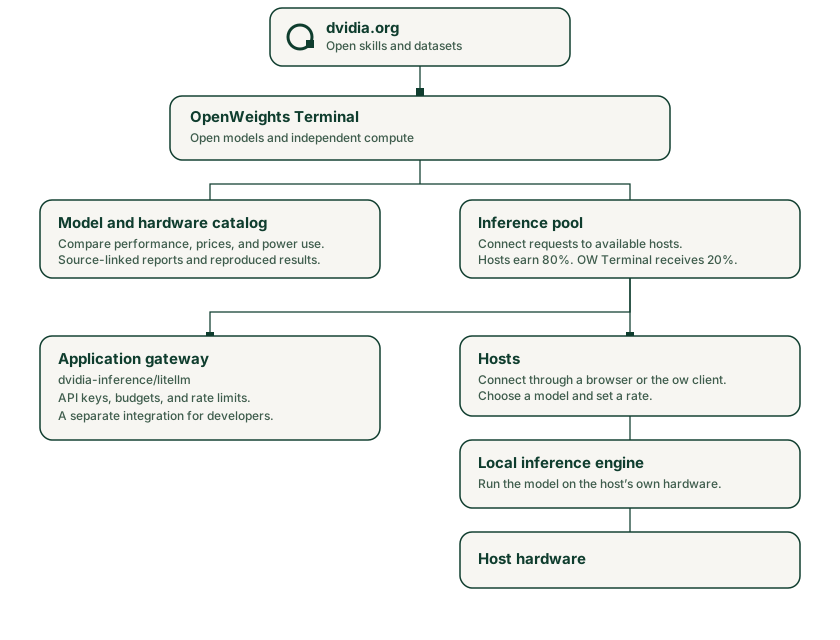
The pool exposes an OpenAI-style chat-completions API for single-prompt requests. The ow host client connects a machine’s local inference engine to the job queue. Our LiteLLM gateway integration adds caller keys, budgets, and rate limits in front of the pool. That gateway is a separate component and does not yet have a public endpoint.
Compute runs on independent hosts. OW Terminal currently coordinates the model directory, job queue, and accounting. Each model offer is tracked separately, while the host worker manages access to its local engine. The pool currently serves text requests; image, voice, and audio listings remain options for local exploration.
Where DVIDIA fits
OW Terminal is a product of DVIDIA, which is building an open marketplace for physical skills. Its goal is to turn demonstrations of real-world tasks into datasets and skills that robots can learn from. OW Terminal focuses on the compute side: understanding what open models can run on, and connecting people to the machines that serve them.
Both projects share the same belief: people should be able to study, adapt, and run the technology they depend on. The manifesto explains why that matters to us.
Ready to try it? Get started with a model or a machine.